Your QuickBooks® Online already has the answers. 2diff Business surfaces them.
Connect through Intuit's sign-in. No IT department. No training. No software to install.
Next: sign in, pay with Stripe, and Silver opens in your dashboard.
By subscribing, you agree to our Terms of Service and Privacy Policy.
How it works
Five steps take you from sign-up to your first answer. Here is what you click in 2diff Business at each one, and what the app does with your books in return.
Step 1
Create your account
Sign up at 2diff.io. Free runs on sample data with no card; to connect your books, subscribe to 2diff Business Silver for $19.99/month. Cancel anytime.
Step 2
Connect to QuickBooks®
Open 2diff Business from your dashboard and click Connect to QuickBooks® in the sidebar. You will be redirected to Intuit's login page. Log in with your QuickBooks® credentials on their site. We never see your password. Review the permissions we are requesting and approve them.
Step 3
Your data loads
2diff Business retrieves your financial data from QuickBooks® Online. Your P&L, balance sheet, cash flow, and chart of accounts are processed and ready. Data is fetched on demand and may be saved to your account so it loads quickly and trends can be compared over time. We never create, change, or delete anything in your QuickBooks® account.
Step 4
Review your reports
Automated P&L, balance sheet, cash flow, and year-to-date summaries are available immediately. Period-over-period comparisons and ratio analysis run automatically.
Step 5
Ask the AI
On Silver, open AI Insights and ask questions in plain language. The AI answers from your actual financial data, your specific numbers. Choose from a curated set of models across OpenAI, Anthropic, and Google, with new models added as they ship. Switch models anytime. The AI models page shows which model suits which question.
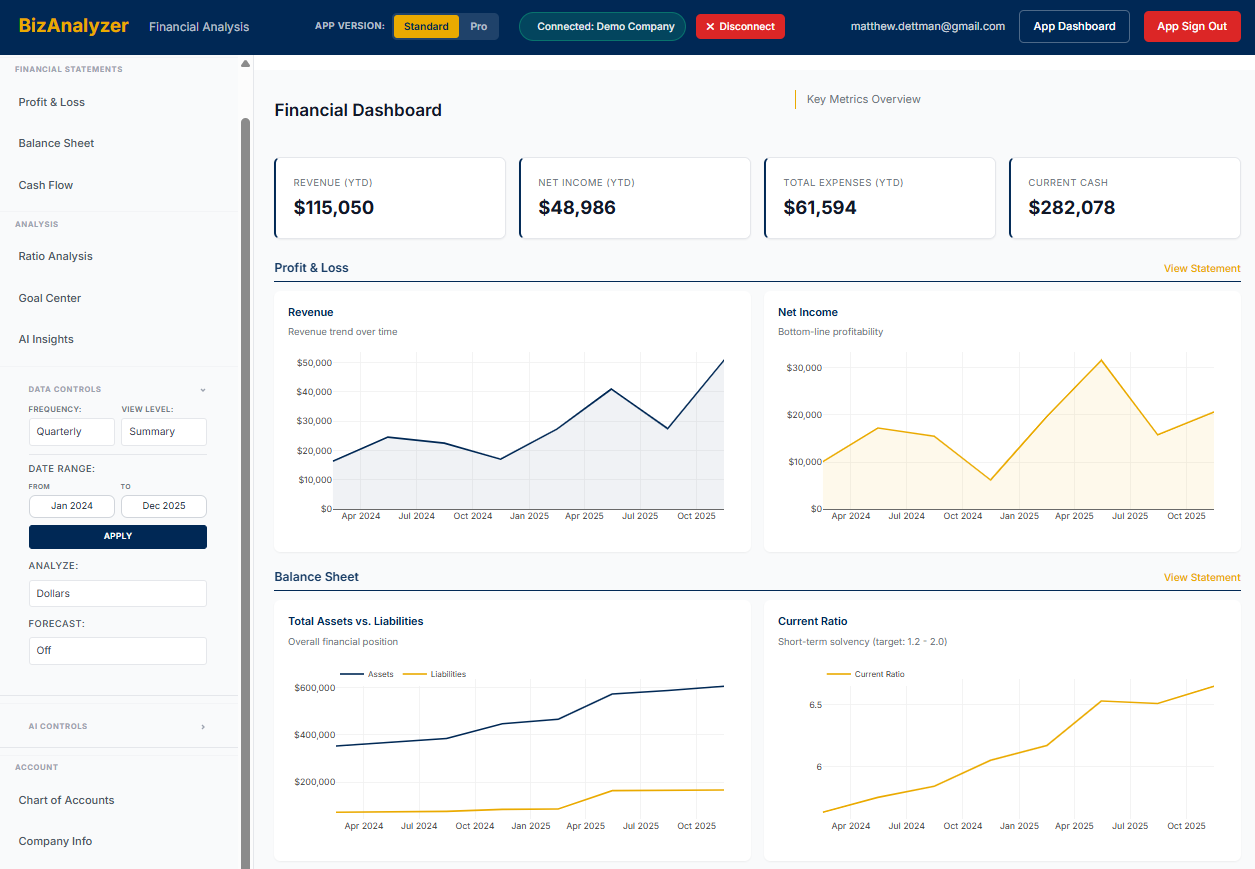
Want the full inventory of what you get after connecting? See the complete 2diff Business features list, or try the free 2diff Business demo with sample data first. Not sure what the demo covers? Read what is in the demo before you open it.
What we access, and what we don't
2diff Business connects through Intuit's OAuth 2.0 sign-in. Intuit's consent screen covers your accounting data; we only read the reports listed below and never touch your credentials or payroll records.
What we read
- Company name and fiscal year settings
- Chart of accounts
- Profit and loss data
- Balance sheet data
- Cash flow data
What we never access
- Your QuickBooks® password (entered only on Intuit's site)
- Bank account credentials or numbers
- Individual transactions, invoices, bills, or customer and vendor lists
- Tax returns or payroll details
- Employee Social Security numbers
- Credit card numbers
- Any data outside the permissions you approve during setup
How your data is protected
Encrypted Transmission
All data between your browser, our servers, and QuickBooks® is encrypted using TLS 1.2 or higher.
Encrypted Storage
Data is encrypted at rest by Google Cloud Platform (AES-256). Access tokens carry an additional application layer of authenticated encryption.
Token Security
Access tokens are short-lived and automatically refreshed. They are never exposed to your browser.
Audit Logging
We maintain logs of all data access for security monitoring and compliance.
Setup side by side: 2diff Business Silver and Bronze
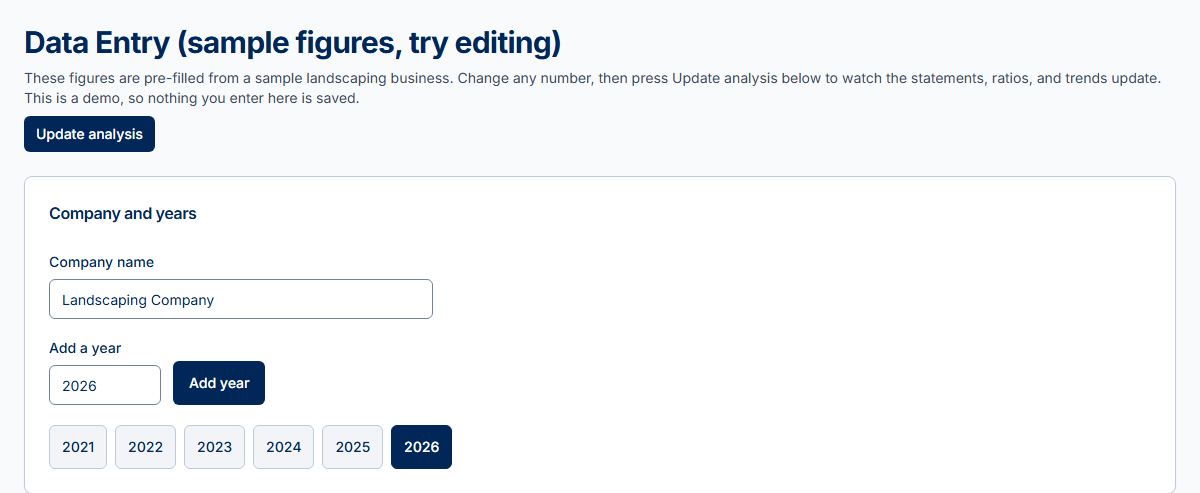
The walkthrough above is the connected path. 2diff Business Bronze skips the connection: you type a few annual totals and get statements, ratios, trends, and a forecast built from them. Here is how the two setups differ.
| Setup step | 2diff Business Silver | 2diff Business Bronze |
|---|---|---|
| Where the numbers come from | Your QuickBooks® Online company, through Intuit's sign-in | Annual totals you type in yourself, one year at a time |
| What you do at setup | Click Connect to QuickBooks® in the sidebar and approve on Intuit's site | Open Enter Data in the sidebar, add a year, and fill in the Profit and Loss and Balance Sheet totals |
| Level of detail | Month by month reports and your chart of accounts | Yearly totals; the cash flow is calculated from them |
| Keeping it current | A saved copy reloads after 4 hours for the current year; Refresh data in Settings pulls it now | Edit any year and the statements, ratios, and trends recalculate |
| AI Insights starts on | Claude Opus 4.7 | None. Bronze is the no-AI plan |
| Price | $19.99/month | $9.99/month |
Ready to see your numbers clearly?
Start free on sample data. Paid plans start at $9.99/month.
QuickBooks® connection uses Intuit's login system. 2diff Business never sees your QuickBooks® password.
Connecting 2diff Business Silver requires an active QuickBooks® Online subscription. Not on QuickBooks Online? Type your figures instead: 2diff Business Bronze, the plan without AI.